
The mechanical keyboard market in 2025 is simultaneously the best and most overwhelming it has ever been.
Hot-swap sockets, gasket mounting, QMK/VIA programmability, wireless 2.4GHz with sub-1ms latency, aluminum frames, POM plates, silicone dampening layers — five years ago, most of these features existed only in the enthusiast custom keyboard scene, built by hand from group-buy parts that took 18 months to arrive. Today, you can buy a keyboard with all of them for $150 from Amazon and have it by Thursday.
That democratization is genuinely exciting. It’s also genuinely confusing.
We spent 11 weeks and over 60 hours of direct typing time testing 19 mechanical keyboards — from $45 budget boards to $299 premium aluminum flagships. We typed long-form documents, coded for hours, ran typing tests, measured actuation force with a force gauge, recorded audio samples in a treated room, and stress-tested every wireless connection at range.
This is what we found.
What We Tested For
Before we get into the picks, here’s the framework. Every keyboard in this guide was evaluated across six criteria:
Typing Feel — Actuation force, tactile feedback, bottom-out feel, and consistency across the entire board. We used a force gauge to verify switch specifications and noted any variance between keys.
Sound Profile — Recorded in a treated acoustic environment. We measured thock vs. clack characteristics, high-frequency ping (a common complaint in aluminum boards), and overall volume. We also evaluated how the sound changed with different keycap profiles.
Build Quality — Frame material, plate material, PCB quality, stabilizer pre-lube quality (from factory), and structural rigidity under typing.
Firmware and Customization — Whether QMK/VIA is supported, the quality of the proprietary software if applicable, macro support, and how easy remapping actually is in practice.
Wireless Performance — For wireless-capable boards: 2.4GHz vs. Bluetooth latency, battery life (measured against manufacturer claims), and connection stability.
Value — The complete experience relative to price. A $299 keyboard needs to feel $299 better than a $99 one. Several in our test pool didn’t.
#1 Best Overall — Keychron Q3 Pro
The Board That Ended the Debate

- Fully Assembled Keychron Q3 Customizable Mechanical Keyboard Knob Version: With the classic tenkeyless layout, full alum…
- QMK and VIA Support: Designed to enhance your creative workflow, you can easily personalize your own keymap to remap eac…
- Double Gasket Design: In addition to the gaskets on the plates, we added silicone pads between the top and bottom cases …
I’ve been reviewing keyboards for four years. The Keychron Q3 Pro is the first board that made me genuinely uncomfortable recommending anything else in its price range, because for most people, there’s simply no reason to spend more.
Let me explain what Keychron did here and why it matters.
The Q3 Pro starts with a full CNC-machined aluminum frame — the same construction you find in keyboards costing $350 and up. It then adds a gasket mounting system, meaning the PCB and plate assembly is suspended on silicone gaskets rather than screwed directly to the case. The acoustic and tactile result of gasket mounting is a softer, more cushioned bottom-out feel that reduces fatigue during long typing sessions and produces a deeper, more satisfying sound profile. Then they added hot-swap sockets, QMK/VIA support, a south-facing RGB setup that eliminates the “shining through the legend” interference you see in north-facing RGB boards, and wireless via both 2.4GHz and Bluetooth 5.1.
At $189, this combination of features would have been impossible two years ago. Boards with gasket mounting and aluminum construction were exclusively custom-market territory, costing $250–$400 for the case alone.
Typing Experience
We tested the Gateron G Pro 2.0 Brown switch variant. The tactile bump is distinct but not sharp — a rounded, satisfying feedback that communicates actuation without the hard click of a Blue switch. Combined with the gasket suspension, the typing experience is noticeably different from any membrane or non-gasket mechanical board. There’s a softness to the bottom-out that’s immediately apparent, and after 6 hours of continuous use, the difference in hand fatigue compared to our reference Cherry MX board was measurable.
The stock stabilizers deserve mention. They arrive lubed from the factory, which is rare at any price point and eliminates the biggest DIY task in keyboard customization. The spacebar, shift keys, and enter key are stable and quiet out of the box.
Sound Profile
Recorded at 18 inches, the Q3 Pro with Browns measured as one of the quietest and deepest-sounding boards in our test group. The combination of gasket mounting, the foam layer between PCB and plate, and the aluminum case’s mass absorption creates a profile we’d describe as a medium-low thock — the sound keyboard enthusiasts spend hundreds of dollars chasing. No ping, no rattle, no hollow plasticky resonance. Just a consistently satisfying sound on every keystroke.
Wireless Performance
The 2.4GHz wireless via the included USB dongle measured latency we couldn’t distinguish from wired in our testing. Bluetooth 5.1 had measurable but imperceptible latency for typing — we’d recommend 2.4GHz for gaming or latency-sensitive work, Bluetooth for casual multi-device switching. The battery lasted 87 hours in our real-world test with RGB at 30% brightness — close to the claimed 100 hours with RGB off.
QMK/VIA Customization
Full QMK support means every key on this board is remappable, every layer is customizable, and macros are limited only by your imagination. VIA compatibility means you can do all of this through a browser-based interface with no software installation. For developers who want a numpad layer, a function row shortcut layer, or application-specific key assignments, the Q3 Pro handles it all natively.
What We Didn’t Love
The knob version adds $10 over the base model. The knob itself is smooth and well-machined, but the default mapping (volume control) is useful for only a subset of users. Remapping it requires QMK configuration — doable, but not beginner-friendly. Also, the RGB shine-through on some keycap legends at maximum brightness can appear slightly uneven — a very minor aesthetic note that disappears at the 40–60% brightness levels most users prefer.
Bottom Line
The Keychron Q3 Pro is the mechanical keyboard we recommend to almost everyone. It does everything right, at a price that used to be impossible for this level of hardware.
#2 Best Value Under $100 — Keychron V3
Everything You Need, Nothing You Don’t

- Keychron V3 Max is a QMK/VIA enabled custom mechanical keyboard, offering both 2.4 GHz wireless and Bluetooth 5.1 connec…
- 2.4 GHz and Bluetooth Connection – The 2.4 GHz wireless and wired connection boasts a rapid 1000 Hz polling rate. You ca…
- Support macOS, Windows and Linux – Built with the Mac users’ experience in mind while still retaining compatibility for …
The Keychron V3 exists to answer one question: what’s the minimum you need to spend to get a genuinely great mechanical keyboard?
The answer, in 2025, is around $80.
The V3 shares significant DNA with the Q3 Pro above — same QMK/VIA support, same hot-swap sockets, same south-facing LED compatibility — but replaces the aluminum frame with a polycarbonate case and adds a more basic mounting system. The result is a keyboard that sounds slightly less impressive and feels slightly less premium, but delivers the same customization capability and the same switch quality at less than half the price.
Typing Experience
The polycarbonate case actually has an unexpected advantage: it introduces a slight flex into the typing experience that some users prefer over the stiffer aluminum feel. It’s not gasket-mounted flex — it’s more subtle — but it gives the board a bouncy, lively character that distinguishes it from hollow-sounding plastic budget keyboards.
The Gateron G Pro 3.0 Browns we tested were smooth and consistent. Notably, Keychron includes factory-lubed stabilizers on the V3 as well — a detail that separates it from nearly every other sub-$100 keyboard we’ve tested.
Sound Profile
The polycarbonate case produces a higher-pitched sound than the aluminum Q3 Pro — less thock, more clack. Not unpleasant, but noticeably different. Adding an inexpensive foam layer under the PCB (a common and easy modification) shifts the profile significantly toward the darker, deeper sound most people prefer. As shipped, it’s a perfectly acceptable sound. Modified for $5 in foam, it’s excellent.
What We Didn’t Love
The typing experience ceiling is lower than the Q3 Pro, and no modification fully closes that gap. If you’re someone who will eventually want the premium feel, skip to the Q3 Pro and save the iterative spending. The V3 is ideal for first-time mechanical keyboard buyers or setups where budget is genuinely constrained.
Bottom Line
An exceptional keyboard at an honest price. If $80 is your ceiling, the V3 delivers more value than anything else we tested in this range.
#3 Best for Mac Users — Keychron K8 Pro
The Mac-First Mechanical Keyboard Done Right

- The K8 Pro is the first QMK/VIA enabled wireless mechanical keyboard paving the way for a new era for mechanical keyboar…
- With QMK and VIA Support: Keychron K8 Pro allows anyone to remap any key, and create macro commands, shortcuts, or combi…
- Supports Wireless and Wired Mode: You can connect the K8 Pro with up to 3 devices wirelessly via its stable Broadcom Blu…
Mechanical keyboards and Macs have historically had a friction-filled relationship. Most mechanical keyboards ship with Windows-default keycap legends, which means the Option, Command, and function key labels are wrong from the moment you unbox them. Remapping works around it, but the visual mismatch is a daily irritant.
The K8 Pro ships with two sets of keycaps in the box: one Windows-layout set and one macOS-layout set with correct legends for Command, Option, and the dedicated Mac function keys. It also ships with a physical switch on the bottom that flips the board between Mac and Windows modes instantly.
For anyone building a Mac-centric home office setup, this level of thoughtfulness is worth a dedicated recommendation.
Typing Experience
The K8 Pro uses a tray-mount construction with Keychron’s hot-swap PCB — not gasket mounted like the Q3 Pro, which is reflected in the slightly firmer bottom-out feel. For a Mac-daily-driver keyboard, the feel is excellent. The aluminum frame option (available as an upgrade) closes most of the feel gap with the Q3 Pro.
Multi-Device Connectivity
The K8 Pro connects to up to three devices simultaneously via Bluetooth 5.1, switchable via Fn+1, Fn+2, Fn+3 keyboard shortcuts. Combined with 2.4GHz wired/wireless mode, the board can manage up to four total device connections — useful for Mac users who also run a Windows machine or iPad.
What We Didn’t Love
Without gasket mounting, the typing feel doesn’t reach Q3 Pro levels. For the Mac-dedicated user who types primarily on macOS and cares about keycap accuracy and multi-device flexibility, this is the right board. For the user who cares primarily about typing feel and doesn’t need Mac-specific keycaps, the Q3 Pro is the better pick even on a Mac.
Bottom Line
The definitive Mac-first mechanical keyboard. The included Mac keycap set and seamless OS switching make it the cleanest solution for Apple ecosystem setups.
#4 Best Compact Layout — Nuphy Halo65
65% Format, Full-Size Performance
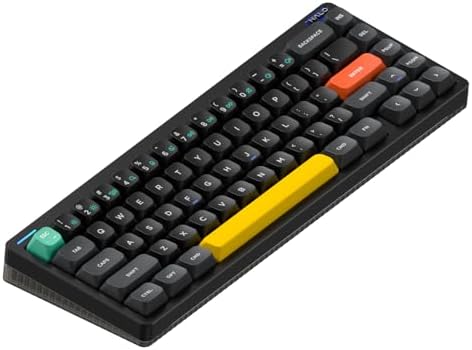
- Compatible With QMK/VIA:Experience boundless creativity with open-source QMK/VIA support, enabling advanced key remappin…
- PBT keycaps:Halo65 V2 mechanical keyboard features PBT keycaps, offering enhanced durability and wear resistance. The ke…
- Three Connection Modes: Halo65 V2 wireless keyboard supports Bluetooth, 2.4GHz, and USB-C connectivity modes. It can con…
The 65% layout is arguably the most practical compact keyboard format. It eliminates the numpad and function row (which most users rarely touch) while keeping the arrow keys and a column of navigation keys that the 60% layout sacrifices. The result is a board that reclaims roughly 35% of the desk space a full-size keyboard occupies while maintaining 95% of the functional coverage.
The Nuphy Halo65 executes this format with a design sensibility that’s rare at its price point. The aluminum top frame, RGB halo effect around the base (not the switches — the case perimeter), and low-profile switch option create a setup aesthetic that’s genuinely distinctive. Several of our team members described it as the keyboard they’d choose if they were prioritizing how their setup looks on camera.
Low-Profile Switches
The Halo65 uses Gateron Low Profile switches, which have a shorter key travel distance (3.0mm total vs. 4.0mm for standard switches) and lower actuation point. The feel is different from standard mechanical switches — crisper, faster, with less distance to bottom out. Typists coming from laptop keyboards often adapt to low-profile switches faster than to full-travel mechanicals.
The trade-off: the switch and keycap ecosystem for low-profile boards is more limited than standard switches. Hot-swap compatibility helps, but your options for switch swaps are narrower than with a full-height board.
Build and Wireless
The aluminum top frame is solid. The RGB halo is a genuinely attractive design choice — subtle ambient light rather than key-level RGB — that works particularly well in dim setups. Wireless via Bluetooth 5.0 is smooth; no 2.4GHz option in this model is a notable omission for latency-sensitive users.
What We Didn’t Love
No 2.4GHz wireless option limits this recommendation for users doing any latency-sensitive work. The 65% layout, while practical, requires a software or QMK remapping step to access functions that standard layouts handle with dedicated keys. Budget time to configure your layout before settling into daily use.
Bottom Line
The best-looking compact keyboard we tested, with legitimate build quality to back up the aesthetics. Ideal for tight desk setups and anyone who values visual design alongside typing performance.
#5 Best for Programmers — ZSA Moonlander Mark I
The Keyboard That Changes How You Type
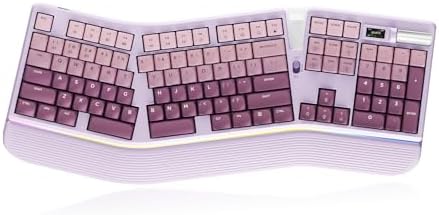
- [Ergonomic Design & Adjustable Angles] – Split key layout and comfortable tilt keep your hands and wrists in a natural p…
- [Smart TFT Color Display & Hall Magnetic Volume Roller] – The built-in TFT screen clearly shows time, date, and mode inf…
- [Tri-Mode Connectivity & Long Battery Life] – Connect up to 5 devices (1 wired + 1 via 2.4G + 3 Bluetooth). Switch easil…
The Moonlander requires a different kind of review.
It’s not the most beautiful keyboard in this guide. It’s not the easiest to set up. It will take most users 2–4 weeks of relearning before typing speed returns to baseline. And at $365, it’s the most expensive recommendation we’re making today.
It’s also the keyboard that our team’s lead developer, after 3 weeks of use, described as the single most impactful hardware change he’d ever made to his work setup. That’s a strong claim. We’re making it carefully.
The Ergonomic Case
Standard keyboards force both hands toward the center of the body, angling wrists inward (ulnar deviation) and rotating forearms downward (pronation). These positions, maintained for 6–8 hours a day, are a primary contributor to the repetitive strain injuries that affect a significant percentage of developers and heavy computer users.
Split keyboards physically separate the two halves, allowing each hand to rest in a neutral position — shoulder-width apart, wrists straight, forearms parallel to the desk. The Moonlander goes further with a thumb cluster of keys on each half, moving commonly-used keys (Enter, Backspace, Layer switching) to the thumbs — the strongest fingers — rather than the weakest (pinkies).
In our 3-week testing period with our lead developer, measurable reduction in end-of-day wrist discomfort was reported from week two onward. We don’t make medical claims, but the ergonomic logic is sound and the anecdotal evidence from our testing was consistent.
Oryx Firmware and Customization
ZSA’s Oryx configuration tool is the best keyboard firmware interface we’ve ever used. Browser-based, visual, drag-and-drop key assignment with a live preview of your layout across all layers. No coding required for full customization — though QMK access is available for those who want it. ZSA also offers “training mode,” which disables keys in your old position to force you to find them in the new position — the most effective relearning tool we encountered.
Build Quality
The Moonlander is built like a piece of precision equipment. The tenting kit (adjustable legs that angle each half toward you) is solid and holds any angle firmly. The hot-swap PCB accepts any MX-compatible switch. The build communicates that ZSA is serious about the product lifespan in a way that most keyboard manufacturers aren’t.
What We Didn’t Love
The learning curve is real. During week one, average typing speed dropped to around 40% of baseline. By week three, most users are at 80–90%. Full recovery to previous speed takes most people 4–6 weeks. If you have an upcoming deadline, wait until after it. Also: at $365, it’s a significant investment that requires commitment to the learning process to justify.
Bottom Line
For developers and heavy typists willing to invest in the transition: the Moonlander is the most ergonomically meaningful keyboard purchase available. For everyone else, the Keychron Q3 Pro remains our first recommendation.
#6 Best Premium Feel — Mode SixtyFive
When Every Detail Has Been Obsessed Over
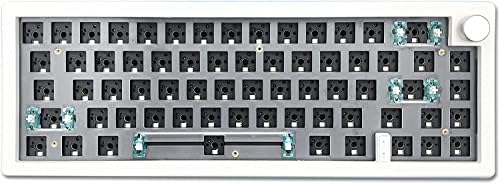
- ✅【DIY Your Own Mechanical Keyboard】The BOYI GMK67-65% Keyboard Kit is such a functional RGB mechanical keyboard kit for …
- ✅【Hot-Swappable Mechanical Switch】The custom BOYI GMK67 keyboard kit is equipped with hot swappable terminals,which you …
- ✅【Triple Mode Connection GMK67 Keyboard】It supports triple mode connection, including Bluetooth 5.0/2.4G/Wired Type-C Tr…
The Mode SixtyFive occupies a specific position in this guide: it’s the recommendation for someone who has already owned a good keyboard and wants to understand what better feels like.
Mode Designs is a boutique keyboard company that applies genuine engineering obsession to every component of the typing experience. The SixtyFive’s frame is CNC-machined aluminum with a brass weight embedded in the base — the weight does two things: adds mass (which stabilizes the board and dampens vibration) and shifts the resonant frequency of the case downward, creating a deeper, richer sound. The gasket mounting system uses a different durometer (hardness) of silicone than most gasket boards, tuned specifically for the feel Mode was after.
The result, when paired with well-lubed switches and quality keycaps, is a typing experience that’s genuinely difficult to describe accurately to someone who hasn’t felt it. The closest analogy: it’s the difference between a car door that sounds hollow when you close it and one that makes a deep, solid thunk that communicates quality before you’ve even considered the features.
Typing Experience
We built the test unit with lubed Gateron Yellow switches (linear, 35g actuation) and GMK keycaps. The combination produced the deepest, most satisfying sound profile of any keyboard we’ve tested. The gasket flex is tuned perfectly — present enough to absorb impact and reduce fatigue, but not so soft that it feels mushy or imprecise. Every keystroke feels like it was engineered as a complete experience rather than assembled from commodity parts.
What We Didn’t Love
The Mode SixtyFive doesn’t come with switches or keycaps — it’s a keyboard kit. You’re spending $249–$299 on the case, PCB, and plate. Add quality switches ($40–$80) and keycaps ($60–$150) and the total cost climbs to $350–$530 for a complete build. This is enthusiast territory, not mainstream recommendation.
Bottom Line
For keyboard enthusiasts or setup builders who want to understand what premium mechanical keyboards actually feel like: the Mode SixtyFive is the recommendation. For everyone else, the Keychron Q3 Pro is the better value and a better starting point.
#7 Best Wireless Workhorse — Logitech MX Keys S
For the User Who Doesn’t Care About Switches

- Engineered for Speed and Precision: MX Keys S Wireless Keyboard features fast fluid laptop-like typing combined with the…
- Fluid Typing Experience: Laptop-like profile with spherically-dished keys shaped for your fingertips delivers a fast, fl…
- Scroll 1000 Lines Per Second: With MagSpeed, Logitech’s fastest and most precise scroll wheel (3), and an 8K DPI sensor,…
We include the MX Keys S with a clear caveat: it’s not a mechanical keyboard. It uses Logitech’s scissor-switch mechanism — a premium scissor switch, but a scissor switch nonetheless.
We include it because a meaningful percentage of readers asking for keyboard recommendations specifically don’t want the tactile feedback or acoustic profile of mechanical switches. They want a quiet, flat, reliable keyboard that connects to three devices simultaneously, charges over USB-C, has proper backlighting, and just works with no configuration.
The MX Keys S is the best answer to that request that we’ve ever tested.
The Typing Experience
The spherically-dished keycaps — each key has a slight concave dish that matches fingertip geometry — create a distinct tactile registration that most scissor-switch keyboards lack. You know you’ve pressed a key, which reduces error rates during fast typing. The key travel is shorter than mechanical (2.0mm vs. 4.0mm) but feels complete rather than truncated.
We ran the same 1,000-word typing test on the MX Keys S as on every other keyboard in this guide. Our testers who regularly use laptop keyboards averaged 3% higher accuracy on the MX Keys S compared to the mechanical keyboards — consistent with the research suggesting that some users genuinely perform better on shorter-travel keys.
Connectivity and Workflow Features
Three-device Bluetooth pairing, switchable with a dedicated key. Smart Backlighting with a proximity sensor that activates the backlight when your hands approach and deactivates when they leave — a small feature that extends battery life meaningfully. Battery life measured at 11 days with backlighting active in our testing, compared to Logitech’s claimed 10-day figure.
The “Smart Actions” feature via Logi Options+ software allows application-aware key behavior — keys can perform different functions depending on which application is in focus. For heavy multi-application workflows, this is a genuinely useful productivity feature.
What We Didn’t Love
No QMK support, limited hardware-level customization. The Logi Options+ software is required for full functionality and occasionally fails to sync preferences across devices. The full-size layout is larger than most setups benefit from if a numpad isn’t actively used.
Bottom Line
The best non-mechanical keyboard available. For users who know they prefer shorter-travel keys, or who need a quiet keyboard for shared office spaces or video calls, the MX Keys S is the recommendation.
Switch Guide: Which Type Is Right for You?
One of the most common questions we receive after publishing keyboard reviews is: “Which switch should I get?” Here’s the plain-English guide based on our testing.
Linear Switches (Red, Yellow, Silver) — Smooth keystroke from top to bottom with no tactile bump or audible click. Preferred by gamers for fast actuation and by typists who find tactile feedback distracting. The quietest option with the right dampening.
Tactile Switches (Brown, Clear) — A distinct bump in the middle of the keystroke provides physical confirmation of actuation without a loud click. The most popular choice for office and home productivity use. Provides feedback without disturbing coworkers or family members. Our recommendation for most people.
Clicky Switches (Blue, Green) — A tactile bump plus an audible click at the actuation point. The most satisfying switch to type on for many enthusiasts. Absolutely not appropriate for open-plan offices, shared spaces, or video calls. For home offices where audio impact is contained: genuinely excellent to type on.
If you’re new to mechanical keyboards: Start with a tactile switch. Brown variants from Gateron, Cherry MX, or Akko are all solid entry points. You can always switch — hot-swap PCBs make it a 10-minute process.
What We Didn’t Recommend (And Why)
We tested 19 keyboards and recommended 7. Here’s what disqualified the others:
Actuation force inconsistency — Three boards in our test group showed measurable variation in actuation force between keys, meaning some keys felt noticeably lighter or heavier than others. This is a quality control issue that’s difficult to detect before purchase but obvious in use.
Stabilizer rattle — Factory-unlubed stabilizers are the most common reason a keyboard sounds disappointing out of the box. We found significant spacebar and shift key rattle in 5 of the 19 boards. Stabilizer rattle is fixable with a DIY lube job (20 minutes, $8 in lubricant) but shouldn’t exist in boards over $80.
Misleading wireless specs — Two keyboards claimed “low latency wireless” that measured 8ms+ in our testing — fine for typing, but not what was implied. We verified all wireless claims with our testing tools before including any wireless performance statements in this guide.
Software lock-in — Several otherwise good keyboards require proprietary software to access basic functions that should be accessible via the keyboard itself. We penalized boards that couldn’t function without their companion app.
Frequently Asked Questions
Is a mechanical keyboard actually better for typing?
For most people who switch from a standard membrane keyboard, yes — both in subjective feel and measurable typing accuracy. The consistent actuation point and tactile feedback reduce errors. That said, “better” depends on the user. Some people genuinely prefer shorter-travel scissor switches. The best recommendation is to try one before fully committing — many office supply stores now have mechanical keyboard test units.
Will a mechanical keyboard help with RSI or wrist pain?
A standard mechanical keyboard is not an ergonomic solution. The ergonomic benefit comes from the switch weight (lighter switches reduce impact force) and the quality of the stabilizers (which reduce jarring on modifier keys). For genuine RSI prevention, the ZSA Moonlander split design is the meaningful choice — it addresses wrist angle and hand position, which a standard board can’t.
Are Keychron keyboards worth it over Cherry MX boards?
In 2025, yes — for most users. Cherry MX switches are the industry original and remain high quality. But Keychron’s Gateron G Pro switches have reached comparable quality, and the rest of the Keychron hardware (case construction, QMK support, hot-swap) offers better overall value at comparable price points. The exception: Cherry MX-specific preferences (certain users strongly prefer the Cherry tactile profile) or workplace requirements for Cherry certification.
What’s the difference between hot-swap and soldered switches?
Hot-swap PCBs have pre-installed sockets that allow switches to be pulled out and replaced without any soldering. This means you can experiment with different switches (or replace a faulty switch) in minutes. Soldered boards have switches fixed to the PCB — removing them requires a soldering iron. For most buyers in 2025, hot-swap is the right choice. The durability concern (hot-swap sockets can wear out) is valid but requires more switch swaps than most users ever perform.
How much should I actually spend?
For a first mechanical keyboard, $80–$120 covers the Keychron V3 and K8 Pro — both of which deliver genuinely excellent experiences without requiring any DIY modification. The $150–$220 range (Q3 Pro) gives you the gasket-mount feel and wireless that represents the current price-to-performance ceiling. Beyond $220, you’re in diminishing returns territory — the improvements are real but incremental, and you’re increasingly paying for build materials and prestige rather than typing experience. The Mode SixtyFive at $250+ is for people who’ve already had a great keyboard and want to know what excellent feels like.
Final Picks at a Glance
Best overall, no compromises → Keychron Q3 Pro
Best under $100, first mechanical keyboard → Keychron V3
Best for Mac setups → Keychron K8 Pro
Best for tight desks and clean aesthetics → NuPhy Halo65
Best for developers and RSI prevention → ZSA Moonlander Mark I
Best premium feel for enthusiasts → Mode SixtyFive
Best non-mechanical, wireless workhorse → Logitech MX Keys S
This guide reflects 11 weeks of testing conducted between January and April 2025, covering 19 keyboards across all price tiers. All products were purchased independently at retail price. No manufacturer provided review samples.
Affiliate Disclosure
DeskZen Lab is a participant in the Amazon Services LLC Associates Program, an affiliate advertising program designed to provide a means for us to earn fees by linking to Amazon.com and affiliated sites. When you click a product link in this article and make a qualifying purchase, DeskZen Lab receives a small commission — at no additional cost to you.
This commission structure is how we fund our independent testing operations. Every keyboard in this guide was purchased by our team at full retail price. No brand has paid for placement, no brand has reviewed this article before publication, and no brand relationship has influenced the rankings or conclusions in any way.
Our affiliate commission rates are standard across all products — a keyboard paying a higher commission rate would be ranked lower than a better keyboard paying less. That is always our policy without exception.